Logo
  • Home
  • Docs
    • Overview
    • Getting Started
    • API Widget Key
    • W12 Template
    • Troubleshooting
  • — Overview
  • — Getting Started
  • — API Widget Key
  • — W12 Template
  • — Troubleshooting

Getting Started

This guide walks you through setting up your first API Widget and adding it to your iPhone Home Screen.


What you need

Before you begin, make sure you have:
  • a mobile device that supports home screen widgets,
  • the 📱API Widget app installed,
  • a publicly accessible JSON API endpoint that returns key–value data.


Step 1 — Prepare your JSON endpoint

Your endpoint should return a JSON response containing a list of key–value pairs.
This data will be displayed using the W12 template, which supports up to 12 rows.

Make sure your endpoint:
  • is accessible over HTTPS,
  • responds quickly and reliably,
  • returns valid JSON.

➡️ See W12 Template for the exact JSON format.
🧩 JSON Example
[
  { "key": "SERVER", "color": "main" },
  { "key": "CPU",  "value": "▉▉░░░░░ 15%", "color": "success" },
  { "key": "RAM",  "value": "▉▉▉▉░░░ 48%", "color": "danger" },
  { "key": "Disk", "value": "▉▉▉▉▉▉░ 92%", "color": "warning" },
  { "key": "" },
  { "key": "TRAFFIC", "color": "main" },
  { "key": "Req/min", "value": "1,240" },
  { "key": "Latency", "value": "92 ms" },
  { "key": "" },
  { "key": "ERRORS", "color": "main" },
  { "key": "5xx Errors", "value": "2", "color": "warning" }
]
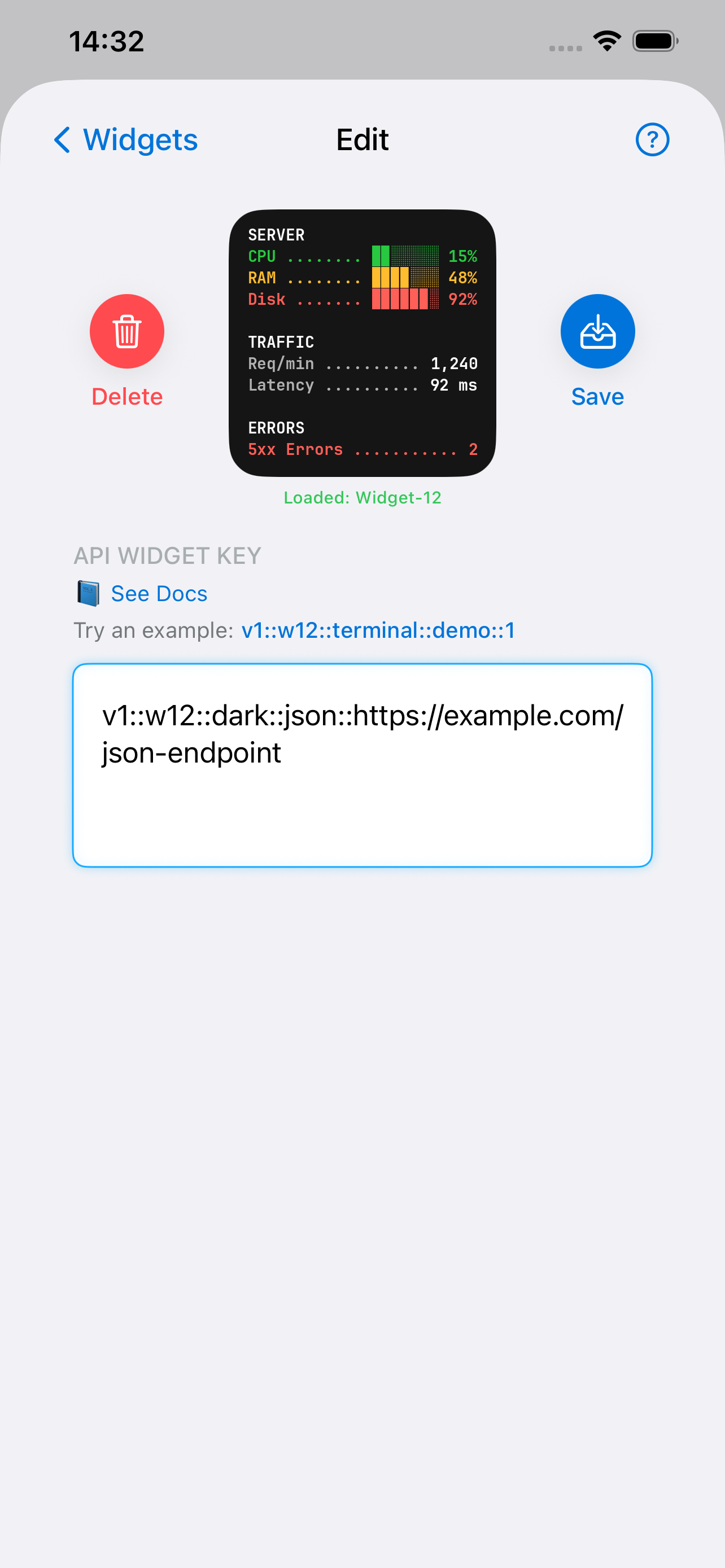

Step 2 — Add and test your API Widget key

Open the API Widget app and paste your API Widget key into the input field.

Tap Save to test the key and store the configuration:
  • the app fetches data from your endpoint,
  • validates the JSON format,
  • and shows a preview of the widget.

After saving, a dialog appears with two options: Continue editing the key or Return to the Widgets screen.
➡️ Learn more in API Widget Key.

🧩 API Widget Key Example:
v1::w12::terminal::json::https://example.com/json-endpoint


Step 3 — Add the widget to your Home Screen

  1. Open the API Widget app.
  2. Paste your API Widget key.
  3. Save the configuration.
  4. Long-press on your Home Screen.
  5. Tap [+], search for API Widget, and add the Small widget.
  6. Select your saved configuration.

The widget will start displaying your data automatically.*

* Widget update timing is managed by iOS WidgetKit and may vary depending on system conditions.


What’s next?

Once your widget is running, you may want to explore:
➡️ API Widget Key — customize appearance and behavior,
➡️ W12 Template — formatting, colors, and limits,
➡️ Troubleshooting — common issues and fixes.


Need help?

If something doesn’t work as expected or you want to share feedback, visit 
➡️ Support & Feedback.
Logo
© 2025-2026 APIwidget.com
Made with ❤ by Valery Shklovskiy

  • Home
  • Docs
  • Privacy Policy
  • Support